How to Connect Claude Code to a HIPAA-Compliant Backend: Supabase, Convex and the BAA Steps

Vendor documentation checked November 11, 2026.
Written by the Specode team. Specode makes one of the tools mentioned (the Specode MCP). This is not legal advice.
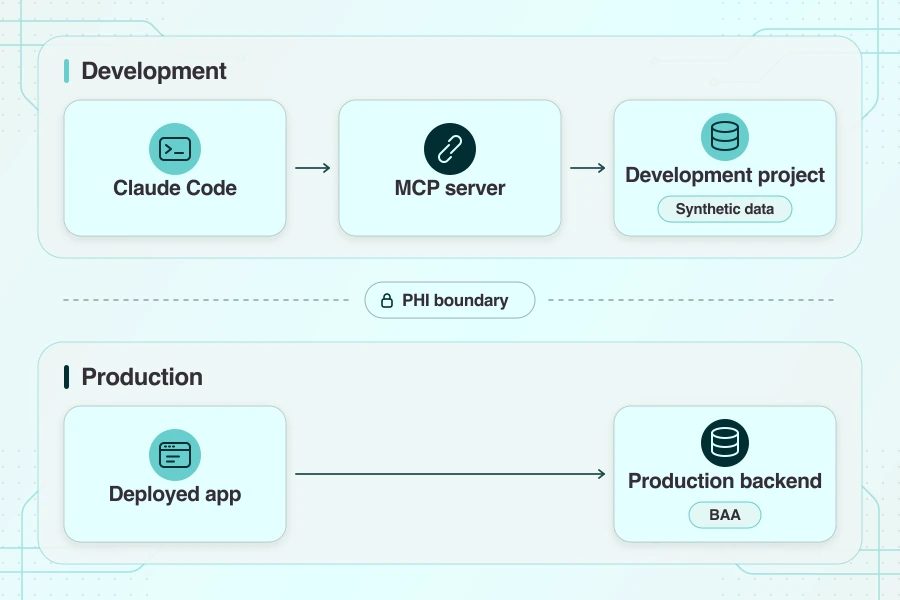
Your frontend works with test records. Now decide where it will send the first real patient record. To connect Claude Code to a HIPAA compliant backend, start by giving the coding tool a separate development project with synthetic data. Configure the deployed app to use its own production backend.
Before the app handles protected health information (PHI), identify the production services that need business associate agreements and configure the safeguards your app requires. For the rest of the build, see our healthcare app development guide.
How do you connect Claude Code to a HIPAA-compliant backend?
Connect Claude Code through MCP to a separate development project with synthetic data. Promote reviewed changes through your release pipeline. For production, choose a backend such as Supabase Team with the HIPAA add-on or Convex Professional. Configure the required safeguards and get the BAA in effect before the deployed app handles PHI. If Claude Code will receive PHI, verify that the account, model and route are covered. Keep PHI out of MCP calls.
Two connections, two compliance questions
A patient portal or telehealth app can reuse its Next.js frontend across environments. Point development and production at separate backend projects. Draw both connections before assigning credentials to your healthcare app.
During development
Use MCP in Claude Code to inspect the schema of a project filled with synthetic data. Invent the handful of records you need or generate fixtures with Synthea. Keep real patient data out of the files, prompts, logs and tool results Claude Code can reach. If Anthropic receives no PHI in that workflow, it has no role as a business associate for that data flow.
In production
The deployed app sends requests to its configured backend. Promote reviewed migrations through your deployment pipeline so the coding session can stay connected to development. Where HIPAA requires a business associate agreement (BAA), make sure it covers the services that handle PHI on your organization’s behalf. Under the shared responsibility model, your team handles risk analysis and safeguards, including minimum necessary access where the standard applies. See HHS cloud computing guidance.
Do you need Anthropic's BAA for this setup?
You don’t need a BAA with Anthropic for this development workflow if no PHI reaches its service. Check what the development tools can reach before you connect them. Even with a database full of fixtures, a screenshot, log or tool result can still contain real patient data. Local MCP servers fall outside Anthropic’s BAA, so keep PHI out of tool inputs and results.
The deployed app has its own data flow. Before it handles PHI, put the applicable agreements in place for services handling that data on your behalf. If developers need to send PHI to Claude Code itself, check the eligible configurations in our guide “is Claude Code HIPAA compliant?”
Choose a HIPAA-compliant backend that signs a BAA
Trace where production patient data goes. Check who signs the agreement and which services it covers. A cloud provider that handles ePHI on behalf of a covered entity or business associate generally needs a BAA, even if it stores encrypted data without the key. Your team still owns its risk analysis and safeguards.
When you budget for a HIPAA compliant database, count the eligible plan, what you’ll use and what it costs to run the required controls. Ask the same questions about HIPAA compliant hosting or a HIPAA compliant API. For Firebase and HIPAA, verify each Google Cloud service your app uses and the scope of your account’s agreement. See Google Cloud’s HIPAA guidance.
For a broader comparison, see HIPAA-compliant app builders and check which tools are HIPAA compliant.
Step by step with Supabase
Before you connect Claude Code to Supabase, choose a development project with synthetic data. Keep a separate production project for real patient data. Send only reviewed migration files through your usual release process.
1. Put the production agreement in place
Choose Team or higher and subscribe to the paid Supabase HIPAA add-on. Check that your BAA is effective before the production project receives PHI. Accepting the Supabase BAA terms and subscribing to the add-on can have the effect of signing.
2. Configure production for High Compliance
Follow Supabase’s High Compliance project requirements for point-in-time recovery, SSL enforcement, network restrictions and connection logging. Turn on High Compliance in the project’s General settings and address the Security Advisor warnings. For a HIPAA-ready Supabase project, use MFA, keep PHI out of public buckets and test your app’s access controls.
3. Create or select the development project
Seed it with synthetic data. Open Settings → General in your development project, copy the Reference ID and replace DEV_PROJECT_REF below with it.
4. Register the development connection
Run the claude mcp add command below using Supabase’s MCP setup guide. Claude Code’s project scope saves the Supabase MCP server in .mcp.json. Check it for secrets before committing it. The command uses project_ref to select development and enables the database feature group in read-only mode. That still permits reads.
5. Confirm what the server can see
From your project folder, run claude in a terminal. In Claude Code, type /mcp, select supabase and choose Authenticate. Sign in through your browser. Once connected, ask Claude Code to run list_tables. If the schema differs from your development project’s, check the project reference.
6. Review and promote your migrations
Ask Claude Code to draft the schema migration, row level security (RLS) policies and app code in your repo. Apply it to synthetic development with your usual migration tooling. With a separate test role, try a read it should allow and one it should block. Review and commit the migration before applying it through your normal deployment pipeline.
7. Configure the deployed app
Point it at the High Compliance production project and give it separately managed production credentials. Keep that project and those credentials outside your Claude Code setup.
Step by step with Convex
Configure Claude Code with a key for a dedicated development deployment before you ask it to inspect your Convex schema.
1. Separate the deployments and arrange the agreement
Keep synthetic data in development. Under Convex’s HIPAA requirements, HIPAA-regulated customers must sign a BAA before processing PHI. Convex lists a BAA on Professional, starting at $25 per developer per month plus applicable usage. Check Convex’s BAA policy and confirm your agreement is effective before routing PHI to the production deployment.
2. Set a development key
Create a deploy key scoped to the synthetic development deployment. Set the CONVEX_DEPLOY_KEY environment variable locally before you start Claude Code. Keep the key value out of your prompts, source control, screenshots and MCP configuration. Give the server the dedicated development key for the session and keep broad logged-in credentials out of the session.
3. Configure the local server
Register the Convex MCP as a stdio server using Convex’s MCP server guide. If your project already has a .mcp.json file, merge the convex entry into its mcpServers map. You can still use status, tables and functionSpec with this configuration. The server gets the key from your local environment.
4. Verify the target before inspecting the schema
In /mcp, check the connection. Use status to confirm the synthetic development deployment, then tables to inspect its schema. If status fails or the target differs, stop and check the key with your Convex admin. Convex allows limited production metadata by default. Leave --cautiously-allow-production-pii and --dangerously-enable-production-deployments off to block production record reads and writes.
5. Promote through your normal pipeline
Review the code, deploy through your usual Convex CLI release process and set separate production credentials for the app. Check what your production plan logs and what your app needs to log itself. Professional team activity logs cover a different scope from transactional application audit logging on dedicated Enterprise deployments.
If you’re still choosing a production platform, see Convex vs AWS for HIPAA apps for a wider comparison.
Add a backend to an existing frontend with the Specode MCP
If you already have a supported frontend-only React + Vite app and an account with backend-building tools enabled, the Specode MCP can add a Convex development backend with authentication and starter code for handling PHI. Use synthetic data in the development deployment.
Specode MCP helps you build, scan and fix your app in development with synthetic data. Use your own Convex production deployment under an effective BAA for live PHI.
1. Connect Claude Code
In a terminal, register Specode’s HTTP server with the following command. Then open the MCP menu with /mcp, select specode and sign in with your Specode account.
2. Ask Claude Code to wire up the frontend
Open your frontend project in Claude Code and paste this prompt. Review the proposed changes before approving the connection to your development backend.
3. Scan the code and review the findings
The MCP submits a project snapshot for a scan of supported TypeScript, JavaScript and SQL. Keep real PHI and secrets out of project files you send to the coding agent or scanner. The agent can fix findings and scan a fresh snapshot to check its changes. Use that scan alongside your own review of the app’s safeguards before you release. If your app already has a Supabase backend, scan supported files in that project and use migration guidance if you decide to move the backend.
4. Set up your own production deployment
Use your own Convex deployment for live PHI. The development deployment Specode creates is outside your BAA. Set fresh production secrets, scan the exact code you’ll deploy and arrange applicable agreements with other vendors handling PHI. Ask Specode support for go-live guidance if you need it.
Configure Claude Code for covered local sessions
Use development credentials, keep synthetic fixtures in seeds and tests, and limit tool permissions to the development project. Have your admin use managed MCP settings to approve the servers this project needs. If developers need a covered local session, follow the local setup and /status checks.
Go-live checklist
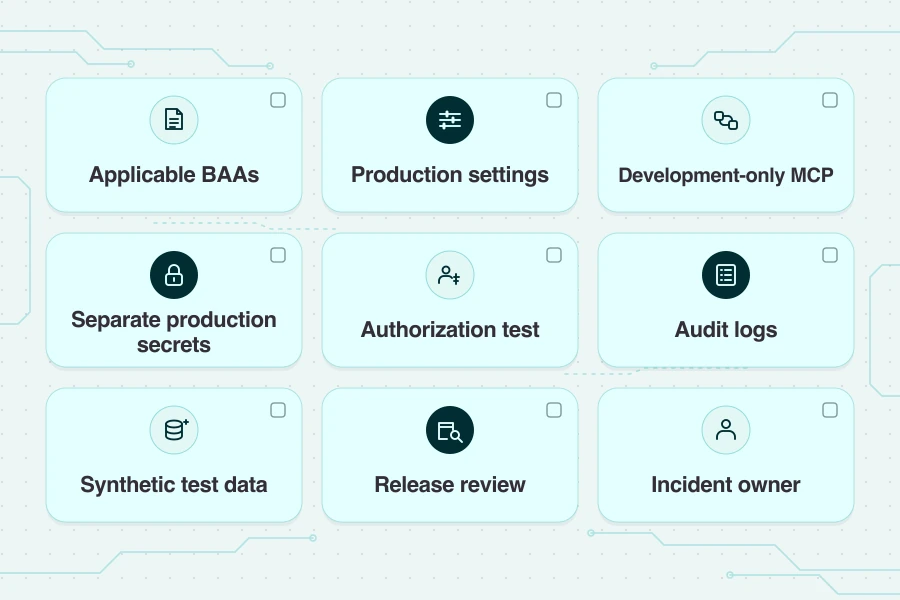
Before launch, verify the agreements and safeguards for each service handling patient data.
- Vendor agreements. List services that handle PHI on your behalf. Check the backend, hosting, email, analytics and error tracking. Confirm each applicable BAA covers the service you use.
- Production configuration. Confirm required settings, including High Compliance for Supabase where applicable. Review encryption at rest against your risk analysis and the service’s configuration.
- Development connections. Confirm every backend MCP connection in the coding project points to a separate development environment.
- Production secrets. Store privileged credentials server-side. Keep them out of frontend code, prompts and
.mcp.json. - Authorization. Sign in with a separate test role and check which records it can reach. Apply the minimum necessary standard where it applies.
- Audit logs. Enable and test the audit logs your app needs. Confirm what your plan logs and what your app must record.
- Fixtures. Use synthetic data in every environment your development tools can reach.
- Release review. Review and scan the exact version you’ll deploy.
- Incident owner. Name who receives reports and coordinates the response.
For the broader build, see HIPAA compliant app development.
Mistakes that put PHI in the build loop
Check which project your MCP server points to before you run a query. If the server can read a production record, it can bring that record into your coding session. The same thing happens if you copy a live record into a fixture and the agent opens it.
Before you give Claude Code a task involving PHI, check the route it will use. An Enterprise BAA does not extend to an IDE extension or an excluded provider route. Check that any logging or error tracking service handling PHI is covered by the applicable BAA. Keep PHI out of public storage buckets.
Cursor’s HIPAA guidance calls for an effective signed agreement and applicable configuration before sending PHI to Cursor. See Cursor’s BAA requirements.
If your prototype already contains real patient data, pause the affected workflow and document what happened. Share what you documented with your compliance lead so they can decide whether you need a breach assessment or other follow-up. See HHS breach notification guidance.
Add a backend with the Specode MCP
Planning a HIPAA compliant backend? In Claude Code, connect the Specode MCP to scan supported code in an existing app. With backend-building tools enabled, you can add a Convex development backend for synthetic data to a supported frontend-only React + Vite project.
Sign in through the MCP menu. For PHI, use your own Convex production deployment under an effective BAA and arrange applicable agreements for other services.
Frequently asked questions
Point it at a separate synthetic development project. Read-only mode still permits reads. The High Compliance settings and BAA for your Supabase production project govern that production setup. Keep its patient records outside the coding connection.
Use Team or higher with the paid HIPAA add-on and an effective BAA. Accepting the agreement and subscribing to the add-on can have the effect of signing. Configure the production project for High Compliance.
Yes. Convex lists a BAA on its Professional plan. Get the agreement in effect before processing PHI in production and check which safeguards your app needs to implement.
Local MCP servers are outside Anthropic’s BAA even when available in Claude Enterprise with the local HIPAA configuration. For the setup in this guide, connect MCP servers to environments that contain only synthetic data.
Pause the affected workflow. Document where the data went and what tools could access it, then involve your compliance lead so they can assess the facts and determine any required follow-up.
Check that project_ref in .mcp.json matches the Reference ID in your Supabase development project settings. Then ask Claude Code to run list_tables and compare the result with your development schema.
Use a deploy key scoped to your development deployment. Set it in your local environment and keep its value out of prompts and source control. Run status to confirm the target before inspecting the schema.
Test the migration against synthetic data in development. With a test role, check that an allowed read succeeds and a restricted read fails. Review and commit the migration, then apply it through your normal deployment pipeline.
Yes. With backend-building tools enabled, the Specode MCP can add a Convex development backend to a supported frontend-only React + Vite app. Review the proposed changes before connecting your frontend, and use synthetic data in development.